# Onboarding Azure account onto Economize

After signing up with [Economize](https://www.economize.cloud/signup) to connect your Azure account, select the **Connect Azure** option when choosing your provider, and follow these steps:

<figure><img src="https://4121990823-files.gitbook.io/~/files/v0/b/gitbook-x-prod.appspot.com/o/spaces%2Fn3X3NsKiruYotJHSzbQX%2Fuploads%2FHoliZPlghw7Msaai7ZYf%2FScreenshot%202025-01-30%20at%2012.58.21%E2%80%AFPM.png?alt=media&#x26;token=4a954b47-b589-4c97-af73-6a70005a855a" alt="" width="563"><figcaption></figcaption></figure>

## **Step 1: Create a New Application Registration**

1. From the [Azure portal](https://portal.azure.com/#home), search for and navigate to **Microsoft Entra ID**.
2. In the left-hand menu, under **Manage**, select **App registrations**.
3. Click **+ New registration**.

<figure><img src="https://4121990823-files.gitbook.io/~/files/v0/b/gitbook-x-prod.appspot.com/o/spaces%2Fn3X3NsKiruYotJHSzbQX%2Fuploads%2FeOsSzzOd2och1wL27pXT%2FScreenshot%202024-05-16%20at%202.42.10%E2%80%AFPM.png?alt=media&#x26;token=8faef1fc-a8d5-428d-85c6-7101bb801935" alt="" width="563"><figcaption></figcaption></figure>

4. The **Register an application** screen will open up. For **Name**, enter **Economize**.
5. Leave all other settings as their defaults and click **Register**.

<figure><img src="https://4121990823-files.gitbook.io/~/files/v0/b/gitbook-x-prod.appspot.com/o/spaces%2Fn3X3NsKiruYotJHSzbQX%2Fuploads%2FkdQFo4KLz4DqSWv29YzM%2FScreenshot%202024-05-16%20at%202.50.23%E2%80%AFPM.png?alt=media&#x26;token=ab50e38f-afd7-45fd-8cfa-808acc45363b" alt="" width="563"><figcaption></figcaption></figure>

6. The app details will be displayed. Record the **Application (client) ID** and **Directory (tenant) ID** as these will be required later.

<figure><img src="https://4121990823-files.gitbook.io/~/files/v0/b/gitbook-x-prod.appspot.com/o/spaces%2Fn3X3NsKiruYotJHSzbQX%2Fuploads%2FhMHlmts2enh0Wncx5PJZ%2FScreenshot%202024-05-16%20at%202.53.15%E2%80%AFPM.png?alt=media&#x26;token=c0e2d70e-2dda-4f43-bcc2-cd25853ab73f" alt="" width="563"><figcaption></figcaption></figure>

## **Step 2: Generate a Client Secret**

1. On the same page, next to the **Client credentials** field, click **Add a certificate or secret**. (You can also access the **Certificates and secrets** screen from the left-hand menu.)
2. Click on **+ New client secret**.
3. The **Add a client secret** pane will be displayed at right. For **Description**, enter a description, such as **economize-secret**.
4. For **Expires**, select an expiration option for the secret.

{% hint style="info" %}
If this secret expires, you will need to supply Economize with a new secret before the expiration date.
{% endhint %}

5. Click **Add**.

<figure><img src="https://4121990823-files.gitbook.io/~/files/v0/b/gitbook-x-prod.appspot.com/o/spaces%2Fn3X3NsKiruYotJHSzbQX%2Fuploads%2FMCXTMpkdvCAIkuMH9oIe%2FScreenshot%202024-05-16%20at%202.59.10%E2%80%AFPM.png?alt=media&#x26;token=85f875ec-a015-4441-8c59-a9b4b9aaffed" alt="" width="563"><figcaption></figcaption></figure>

6. The newly created secret is displayed. Copy the secret's **Value** and save it somewhere to add it to the Economize console later as this value will be displayed only once.

## **Step 3: Grant the Service Principal Permissions**

{% tabs %}
{% tab title="Management group" %}
{% hint style="info" %}
Economize recommends assigning permissions to a management group that aggregates all your subscriptions. This way, all your subscriptions will be onboarded onto the platform at once.
{% endhint %}

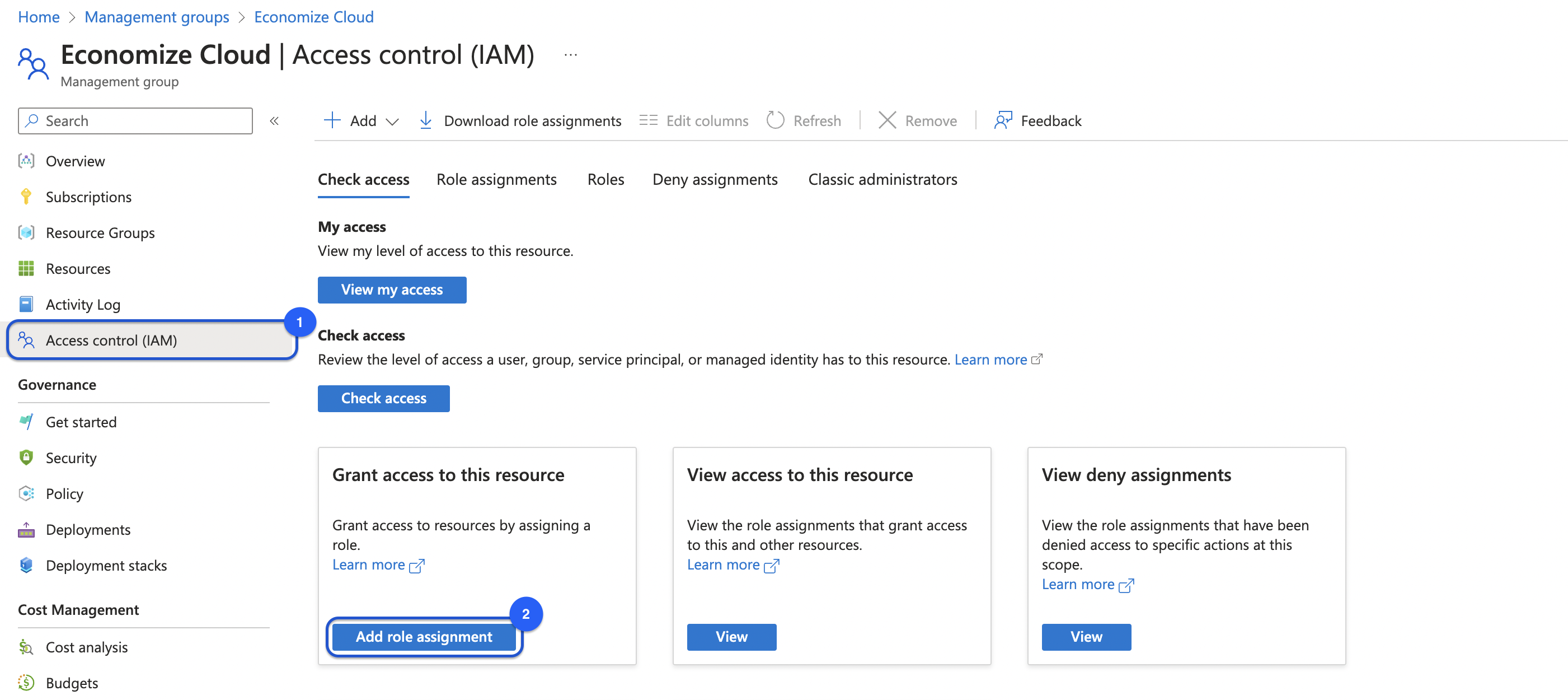
1. From the top navigation, search for and navigate to **Management groups**.
2. Create a new one or open an existing management group for which you will be assigning permissions.
3. On the left navigation, click **Access control (IAM)**.
4. Click **Add role assignment**.

<figure><img src="https://4121990823-files.gitbook.io/~/files/v0/b/gitbook-x-prod.appspot.com/o/spaces%2Fn3X3NsKiruYotJHSzbQX%2Fuploads%2FCIvRhQIBliaDDDNmCek8%2FScreenshot%202024-06-17%20at%203.50.40%E2%80%AFPM.png?alt=media&#x26;token=52abe2f8-80f6-46d3-8f58-c77c4e8bfc5f" alt="" width="563"><figcaption></figcaption></figure>

5. On the **Add role assignment** screen, select **Reader**. Then, click **Next**.

<figure><img src="https://4121990823-files.gitbook.io/~/files/v0/b/gitbook-x-prod.appspot.com/o/spaces%2Fn3X3NsKiruYotJHSzbQX%2Fuploads%2F8azLKmKPJxsuN9J4bs7j%2FScreenshot%202024-06-17%20at%203.54.08%E2%80%AFPM.png?alt=media&#x26;token=0bad4ec9-5624-4d3c-84ca-cf0d8d42335a" alt="" width="563"><figcaption></figcaption></figure>

6. For **Assign access to**, select **User, group, or service principal**.
7. Click **+ Select members**. The **Select members** tab is displayed on the right. Search for the Economize app you created before. Select the listed app, then click **Select**.

<figure><img src="https://4121990823-files.gitbook.io/~/files/v0/b/gitbook-x-prod.appspot.com/o/spaces%2Fn3X3NsKiruYotJHSzbQX%2Fuploads%2FAJ4DFllTzEbrXa2hq6gd%2FScreenshot%202024-06-17%20at%203.56.56%E2%80%AFPM.png?alt=media&#x26;token=53e238a4-76e2-482d-82f5-76cda66f73db" alt="" width="563"><figcaption></figcaption></figure>

8. Click **Next** > **Review + assign**.

<figure><img src="https://4121990823-files.gitbook.io/~/files/v0/b/gitbook-x-prod.appspot.com/o/spaces%2Fn3X3NsKiruYotJHSzbQX%2Fuploads%2FUj0PQUDa49OVP2RA9PAI%2FScreenshot%202024-06-17%20at%203.58.20%E2%80%AFPM.png?alt=media&#x26;token=d7f60174-cb73-4c83-a545-ef639d45f279" alt="" width="563"><figcaption></figcaption></figure>
{% endtab %}

{% tab title="Individual subscriptions" %}

1. From the top navigation, search for and navigate to **Subscriptions**.

<figure><img src="https://4121990823-files.gitbook.io/~/files/v0/b/gitbook-x-prod.appspot.com/o/spaces%2Fn3X3NsKiruYotJHSzbQX%2Fuploads%2FasR6PO0cEJHpDZSQSKdi%2FScreenshot%202024-10-22%20at%202.16.22%E2%80%AFPM.png?alt=media&#x26;token=add32a73-13e3-413d-8adc-d99ee3dec26d" alt="" width="563"><figcaption></figcaption></figure>

2. Repeat steps 3-8 for each subscription you wish to onboard.
3. On the left navigation, click **Access control (IAM)**.
4. Click **Add role assignment**.

<figure><img src="https://4121990823-files.gitbook.io/~/files/v0/b/gitbook-x-prod.appspot.com/o/spaces%2Fn3X3NsKiruYotJHSzbQX%2Fuploads%2F1iHXQhubA6vHjAtd6nE3%2FScreenshot%202024-10-22%20at%202.45.53%E2%80%AFPM.png?alt=media&#x26;token=3a190b28-e69d-4339-9b85-18c39eee8fa8" alt="" width="563"><figcaption></figcaption></figure>

5. On the **Add role assignment** screen, select **Reader**. Then, click **Next**.
6. For **Assign access to**, select **User, group, or service principal**.
7. Click **+ Select members**. The **Select members** tab is displayed on the right. Search for the Economize app you created before. Select the listed app, then click **Select**.
8. Click **Next > Review + assign**.

<figure><img src="https://4121990823-files.gitbook.io/~/files/v0/b/gitbook-x-prod.appspot.com/o/spaces%2Fn3X3NsKiruYotJHSzbQX%2Fuploads%2FDcU8ve6pMMXtL0BpiwiB%2FScreenshot%202024-10-22%20at%202.48.48%E2%80%AFPM.png?alt=media&#x26;token=43ce41bc-7a79-4e75-97dc-6527b0a74003" alt="" width="563"><figcaption></figcaption></figure>
{% endtab %}
{% endtabs %}

## Step 4: Create the billing export <a href="#save-credentials" id="save-credentials"></a>

{% tabs %}
{% tab title="Billing account" %}
{% hint style="info" %}
Make sure you're on the billing scope when performing the following steps.

To ensure you're on the billing scope, check the text on your cost management screen that states **Billing account** as in the image below:

![](https://4121990823-files.gitbook.io/~/files/v0/b/gitbook-x-prod.appspot.com/o/spaces%2Fn3X3NsKiruYotJHSzbQX%2Fuploads%2FmZmspNBa0rSAzqwgxbJB%2FScreenshot%202024-06-17%20at%205.10.15%E2%80%AFPM.png?alt=media\&token=3076bfbe-0ff7-4945-8b0d-b2f6ea6c33ae)
{% endhint %}

1. Navigate to **Cost Management + Billing**, and from **Billing scopes** select the one for which you wish to create the billing export.

<figure><img src="https://4121990823-files.gitbook.io/~/files/v0/b/gitbook-x-prod.appspot.com/o/spaces%2Fn3X3NsKiruYotJHSzbQX%2Fuploads%2FmCjKWibiczxS2HBCFabJ%2FScreenshot%202024-06-17%20at%204.26.44%E2%80%AFPM.png?alt=media&#x26;token=315d2435-b1c4-49c1-877f-de427bdd88d6" alt="" width="563"><figcaption></figcaption></figure>

2. Click **Export** under **Setting** in the left-hand menu.

<figure><img src="https://4121990823-files.gitbook.io/~/files/v0/b/gitbook-x-prod.appspot.com/o/spaces%2Fn3X3NsKiruYotJHSzbQX%2Fuploads%2FydPpHeriTkHwtDIgAB5G%2FScreenshot%202024-06-17%20at%204.29.06%E2%80%AFPM.png?alt=media&#x26;token=82174612-c177-4c2d-9e8a-746bea9b5a10" alt="" width="563"><figcaption></figcaption></figure>

3. From the Export screen, click **+ Create**, and select **Create your own export**.

<figure><img src="https://4121990823-files.gitbook.io/~/files/v0/b/gitbook-x-prod.appspot.com/o/spaces%2Fn3X3NsKiruYotJHSzbQX%2Fuploads%2FmfXIZZXxFOwexQPPNWvu%2FScreenshot%202024-06-17%20at%204.33.11%E2%80%AFPM.png?alt=media&#x26;token=25370d21-937d-4c31-b627-4f71c3b0df2e" alt="" width="563"><figcaption></figcaption></figure>

4. Fill in the required fields as follows:
   * **Type of data:** Cost and usage details (actual)
   * **Export name:** Enter any name you want for the export, such as economize\_export
   * **Dataset version:** 2021-10-01
   * **Frequency:** Daily export of month-to-date costs
   * **Export description:** Enter any description you want for the export
5. Click on **ADD + Next**.
6. Enter a unique name for **Export prefix**. (Azure uses this when it creates files in your storage account. It’s required so Azure can make sure every export it generates has a unique, organized name.)

<figure><img src="https://4121990823-files.gitbook.io/~/files/v0/b/gitbook-x-prod.appspot.com/o/spaces%2Fn3X3NsKiruYotJHSzbQX%2Fuploads%2FijmFArxQGpkbgPZvdgnQ%2FPrefix.png?alt=media&#x26;token=d175d96b-7dd5-4842-b779-256fe186d153" alt="" width="563"><figcaption></figcaption></figure>

{% hint style="info" %}

#### What it actually does

If you set:

```
Export prefix: export-cost
```

Azure will create blobs like:

```
export-cost/2026/02/01/...
export-cost/2026/02/02/...
```

{% endhint %}

6. Fill in the destination details as follows:
   * **Storage type:** Azure blob storage
   * **Destination and storage:** Choose **Use existing** or **Create new**, and fill in the information for fields (Subscription, Storage account, Container, and Directory) accordingly.
   * **Format:** CSV
   * **Compression type:** None
   * **File partitioning:** Set this to true
   * **Overwrite data:** Set this to true
7. Click on **Next** and then **Create** after reviewing the entered details.
8. When the export is created, run the export from the export page by selecting it and clicking **Run now**, once the run has been completed successfully it will indicate the same as follows:

<figure><img src="https://4121990823-files.gitbook.io/~/files/v0/b/gitbook-x-prod.appspot.com/o/spaces%2Fn3X3NsKiruYotJHSzbQX%2Fuploads%2FtlIAcOkGQhT1TX9exI4A%2FScreenshot%202024-05-17%20at%208.26.20%E2%80%AFPM.png?alt=media&#x26;token=09c453dc-5300-496b-b170-2da4c401f418" alt="" width="563"><figcaption></figcaption></figure>

10. Now, on the same page navigate to **Access control (IAM)**, and click on **+ Add**.

<figure><img src="https://4121990823-files.gitbook.io/~/files/v0/b/gitbook-x-prod.appspot.com/o/spaces%2Fn3X3NsKiruYotJHSzbQX%2Fuploads%2FsY6iTR23JEGZsgaOTF8X%2FScreenshot%202024-06-17%20at%204.47.39%E2%80%AFPM.png?alt=media&#x26;token=f807296f-3f84-4d34-ac67-efe920689b4e" alt="" width="563"><figcaption></figcaption></figure>

11. Select and grant the role **Billing account reader** to the application you created in the [first step](#step-1-create-a-new-application-registration).

<figure><img src="https://4121990823-files.gitbook.io/~/files/v0/b/gitbook-x-prod.appspot.com/o/spaces%2Fn3X3NsKiruYotJHSzbQX%2Fuploads%2F6UdOjdVkA3E2hMfyYF2k%2FScreenshot%202024-06-17%20at%204.48.41%E2%80%AFPM.png?alt=media&#x26;token=02676467-ba91-4dae-aa60-66112a086d82" alt="" width="375"><figcaption></figcaption></figure>
{% endtab %}

{% tab title="Individual subscriptions" %}

1. Navigate to **Cost Management + Billing.**
2. Click **Export** under **Setting** in the left-hand menu.
3. Click **Scope**, then choose the subscription you want to onboard, which will appear as a key icon in front of its name. (Repeat the following steps 4-9 for each subscription you wish to onboard onto Economize.)

<figure><img src="https://4121990823-files.gitbook.io/~/files/v0/b/gitbook-x-prod.appspot.com/o/spaces%2Fn3X3NsKiruYotJHSzbQX%2Fuploads%2FWsAJubo3XdfVDFKmhfsX%2FScreenshot%202024-10-22%20at%201.46.40%E2%80%AFPM.png?alt=media&#x26;token=0bb5eae3-a774-4841-a7cb-d264c000fc05" alt=""><figcaption></figcaption></figure>

4. From the Export screen, click **+ Create**, and select **Create your own export**.

<figure><img src="https://4121990823-files.gitbook.io/~/files/v0/b/gitbook-x-prod.appspot.com/o/spaces%2Fn3X3NsKiruYotJHSzbQX%2Fuploads%2FU5KeuQK89RA3aeuBt4uX%2FScreenshot%202024-10-22%20at%201.55.00%E2%80%AFPM.png?alt=media&#x26;token=f4eccdfa-6c58-4f94-9958-c2e808526c54" alt=""><figcaption></figcaption></figure>

5. Fill in the required fields as follows:
   1. **Type of data:** Cost and usage details (actual)
   2. **Export name:** Enter any name you want for the export, such as economize\_export
   3. **Dataset version:** 2021-10-01
   4. **Frequency:** Daily export of month-to-date costs
   5. **Export Description:** Enter any description you want for the export
6. Click on **ADD**.
7. Enter a unique name for **Export prefix**. (Azure uses this when it creates files in your storage account. It’s required so Azure can make sure every export it generates has a unique, organized name.)

   <figure><img src="https://4121990823-files.gitbook.io/~/files/v0/b/gitbook-x-prod.appspot.com/o/spaces%2Fn3X3NsKiruYotJHSzbQX%2Fuploads%2FijmFArxQGpkbgPZvdgnQ%2FPrefix.png?alt=media&#x26;token=d175d96b-7dd5-4842-b779-256fe186d153" alt="" width="563"><figcaption></figcaption></figure>

   <div data-gb-custom-block data-tag="hint" data-style="info" class="hint hint-info"><h4>What it actually does</h4><p>If you set:</p><pre><code>Export prefix: export-cost
   </code></pre><p>Azure will create blobs like:</p><pre><code>export-cost/2026/02/01/...
   export-cost/2026/02/02/...
   </code></pre></div>
8. Fill in the destination details as follows:
   * **Storage type:** Azure blob storage
   * **Destination and storage:** Choose to **Use existing** or **Create new**, and fill in the information for fields (Subscription, Storage account, Container, and Directory) accordingly.
   * **Format:** CSV
   * **Compression type:** None
   * **File partitioning:** Set this to true
   * **Overwrite data:** Set this to true
9. Click on **Next** and then **Create** after reviewing the entered details.
10. When the export is created, run the export from the export page by selecting it and clicking **Run now**, once the run has been completed successfully it will indicate the same as follows:

<figure><img src="https://4121990823-files.gitbook.io/~/files/v0/b/gitbook-x-prod.appspot.com/o/spaces%2Fn3X3NsKiruYotJHSzbQX%2Fuploads%2FS6Fk3zat85D0pKr1GES7%2Ffinal.avif?alt=media&#x26;token=ff262eb2-ffe3-4f4b-8f15-ba25c80965cb" alt=""><figcaption></figcaption></figure>
{% endtab %}
{% endtabs %}

## Step 5: Grant Economize **Reader and Data Access** permission <a href="#h_146f496ce7" id="h_146f496ce7"></a>

1. On the same page navigate back to the **Exports** tab under settings, and open up the export you just created, to click on the **Storage account** you used.

<figure><img src="https://4121990823-files.gitbook.io/~/files/v0/b/gitbook-x-prod.appspot.com/o/spaces%2Fn3X3NsKiruYotJHSzbQX%2Fuploads%2FPxbBuR7HuBeONVzXKAsQ%2FScreenshot%202024-05-17%20at%208.28.02%E2%80%AFPM.png?alt=media&#x26;token=f079c88d-2a7b-42c1-855a-c7ed8e23e7b2" alt="" width="563"><figcaption></figcaption></figure>

3. Select **Access control (IAM)**.
4. Click **+Add** and then click **Add role assignment**.
5. Search for **Reader and Data Access**, select it, and then click **Next**.

<figure><img src="https://4121990823-files.gitbook.io/~/files/v0/b/gitbook-x-prod.appspot.com/o/spaces%2Fn3X3NsKiruYotJHSzbQX%2Fuploads%2F572UjAMaTk0jbEe6eTy3%2FScreenshot%202024-05-17%20at%2010.57.24%E2%80%AFPM.png?alt=media&#x26;token=b818228c-0a24-4a81-a85b-73046b9cf04f" alt="" width="563"><figcaption></figcaption></figure>

6. Click **+ Select members** and search for the Economize service principal.
7. Select that Economize service principal and click **Select**.
8. Click **Review + Assign**.

## Step 6: Add configuration information to Economize console[​](https://docs.vantage.sh/connecting_azure#save-credentials) <a href="#save-credentials" id="save-credentials"></a>

After you complete all the above steps, add the **Application (client) ID, Directory (tenant) ID, & Client secret value,** you previously obtained, then click **Connect**.

<figure><img src="https://4121990823-files.gitbook.io/~/files/v0/b/gitbook-x-prod.appspot.com/o/spaces%2Fn3X3NsKiruYotJHSzbQX%2Fuploads%2FSAoAwsjmyfjduEKHkT1v%2FAzure%20Connect.png?alt=media&#x26;token=09cb43cb-5291-4148-b62b-f252de814b02" alt="" width="563"><figcaption></figcaption></figure>

{% hint style="success" %}
**SUCCESS**

The data can take up few minutes to fully propagate within the newly created export.

So, you might not be able to use all the features right away but you can still utilize the [Recommendations](https://docs.economize.cloud/product-features/recommendations) to start optimizing your costs.
{% endhint %}


---

# Agent Instructions: Querying This Documentation

If you need additional information that is not directly available in this page, you can query the documentation dynamically by asking a question.

Perform an HTTP GET request on the current page URL with the `ask` query parameter:

```
GET https://docs.economize.cloud/azure/onboarding.md?ask=<question>
```

The question should be specific, self-contained, and written in natural language.
The response will contain a direct answer to the question and relevant excerpts and sources from the documentation.

Use this mechanism when the answer is not explicitly present in the current page, you need clarification or additional context, or you want to retrieve related documentation sections.