# Adding new AWS accounts as an existing user

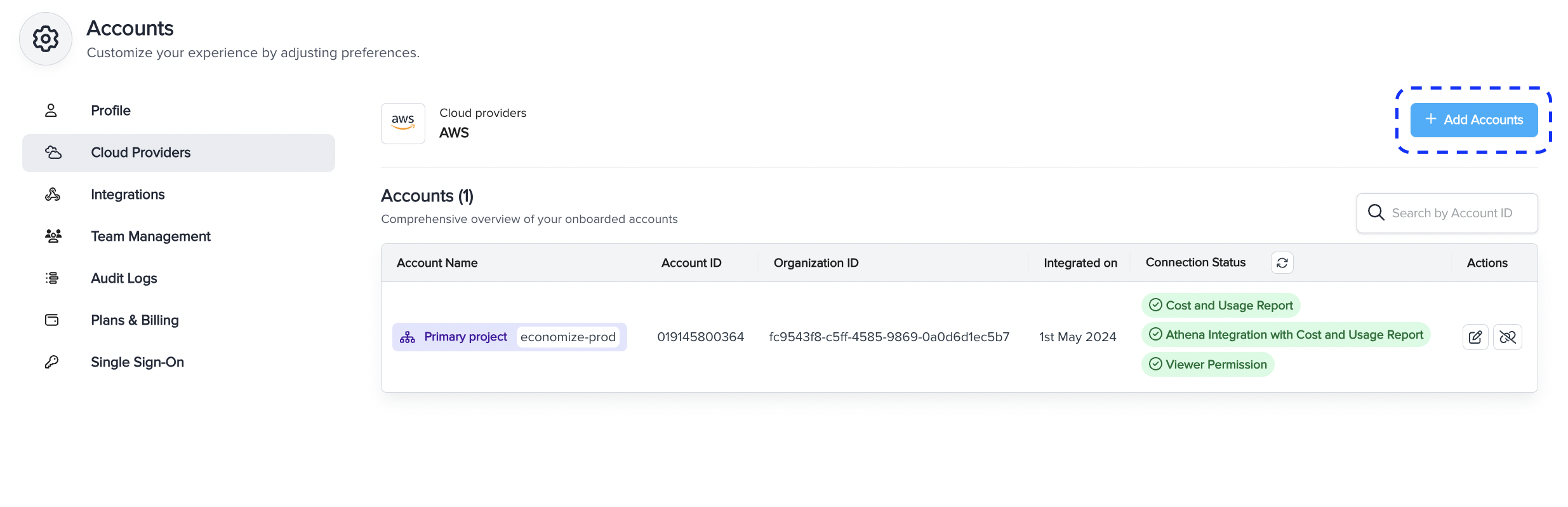
Navigate to the [AWS Accounts page](https://www.economize.cloud/app/settings/cloud_provider/accounts) within settings, and click on the **Add Accounts** button. As an existing user, you have the option to either onboard multiple accounts or a single account as per your preference.

<figure><img src="https://4121990823-files.gitbook.io/~/files/v0/b/gitbook-x-prod.appspot.com/o/spaces%2Fn3X3NsKiruYotJHSzbQX%2Fuploads%2FemC2j6f6zpmMfKAlXCar%2FScreenshot%202025-01-30%20at%201.18.04%E2%80%AFPM.png?alt=media&#x26;token=c57b6844-4ab2-48e6-b7c8-93ec4b5b5d2b" alt="" width="563"><figcaption></figcaption></figure>

{% tabs %}
{% tab title="Import single account" %}

1. Select **Single Account** as your import method.

<figure><img src="https://4121990823-files.gitbook.io/~/files/v0/b/gitbook-x-prod.appspot.com/o/spaces%2Fn3X3NsKiruYotJHSzbQX%2Fuploads%2FBnCzvB11Ren1tUHhPDcF%2FScreenshot%202025-01-30%20at%201.19.33%E2%80%AFPM.png?alt=media&#x26;token=e28025c6-ac08-4e47-ae00-a4fcb39f6779" alt="" width="563"><figcaption></figcaption></figure>

2. Click on the **Create Stack** button, to get redirected to AWS CloudFormation with prefilled settings that will look as follows.

<figure><img src="https://4121990823-files.gitbook.io/~/files/v0/b/gitbook-x-prod.appspot.com/o/spaces%2Fn3X3NsKiruYotJHSzbQX%2Fuploads%2F6eQq3a3fKEJwjSVqLq5E%2FScreenshot%202024-03-12%20at%2011.48.56%20AM.png?alt=media&#x26;token=8f342485-23a9-48e6-9850-5be1475422d4" alt="" width="563"><figcaption></figcaption></figure>

2. Check on the **I acknowledge that AWS CloudFormation might create IAM resources** within the blue dialog box.

<figure><img src="https://4121990823-files.gitbook.io/~/files/v0/b/gitbook-x-prod.appspot.com/o/spaces%2Fn3X3NsKiruYotJHSzbQX%2Fuploads%2FpP1Rwya30DiDnrgATNCc%2FScreenshot%202024-03-12%20at%2011.51.36%20AM.png?alt=media&#x26;token=82ce8664-08bb-422d-a9ed-1bab3652bfde" alt="" width="563"><figcaption></figcaption></figure>

3. Click on **Create stack.**
4. Once the stack has been created successfully, your account will be onboarded to Economize and you will be redirected to the dashboard.
   {% endtab %}

{% tab title="Import multiple accounts" %}

1. Select **Multiple Account** as your import method.

<figure><img src="https://4121990823-files.gitbook.io/~/files/v0/b/gitbook-x-prod.appspot.com/o/spaces%2Fn3X3NsKiruYotJHSzbQX%2Fuploads%2FQXoiE6pLfpo69mQuA6Mh%2FScreenshot%202025-01-30%20at%201.20.15%E2%80%AFPM.png?alt=media&#x26;token=c3196a2a-88ed-40f2-8b56-5989c689a133" alt=""><figcaption></figcaption></figure>

2. Click on the **Create Stack** button, to get redirected to the AWS CloudFormation page.
3. In **Step 1 (Choose a template)** of the stack creation copy and paste the value of the Amazon S3 URL into the provided field as follows, and click on **Next**.

<figure><img src="https://4121990823-files.gitbook.io/~/files/v0/b/gitbook-x-prod.appspot.com/o/spaces%2Fn3X3NsKiruYotJHSzbQX%2Fuploads%2FzMV81ROHnsaKNX5WqsuI%2FScreenshot%202024-03-12%20at%2011.24.51%20AM.png?alt=media&#x26;token=cf714afb-8257-411f-bced-c6c3c5a52677" alt="" width="563"><figcaption></figcaption></figure>

4. In **Step 2 (Specify StackSet details)** of the stack creation copy and paste the StackSet name and other parameters i.e., CurAccountID, EconomizeDomain, EconomizeHandshakeID, EconomizeID, and EconomizeIamRole into the provided fields as follows.

<figure><img src="https://4121990823-files.gitbook.io/~/files/v0/b/gitbook-x-prod.appspot.com/o/spaces%2Fn3X3NsKiruYotJHSzbQX%2Fuploads%2FEoHGvYfxchhss1vREie2%2FScreenshot%202024-03-12%20at%2011.30.40%20AM.png?alt=media&#x26;token=f6f5161a-0319-46d7-83ab-9449b9cb17fa" alt="" width="563"><figcaption></figcaption></figure>

5. In **Step 3 (Configure StackSet options)** of stack creation leave the setting as it is and click on **Next**.

<figure><img src="https://4121990823-files.gitbook.io/~/files/v0/b/gitbook-x-prod.appspot.com/o/spaces%2Fn3X3NsKiruYotJHSzbQX%2Fuploads%2F2NE7dYAJtjS8SjggHTYP%2FScreenshot%202024-03-12%20at%2011.34.15%20AM.png?alt=media&#x26;token=a5387e0d-2cd5-4327-8954-dd64ecb208ef" alt="" width="563"><figcaption></figcaption></figure>

6. In **Step 4 (Set deployment options)** of stack creation select **US East (N. Virginia)** in the Specify regions field, and click on **Next**.

<figure><img src="https://4121990823-files.gitbook.io/~/files/v0/b/gitbook-x-prod.appspot.com/o/spaces%2Fn3X3NsKiruYotJHSzbQX%2Fuploads%2FV756tiXzseJFH2Wddbnm%2FScreenshot%202024-03-12%20at%2011.36.58%20AM.png?alt=media&#x26;token=f831a6d7-a363-4d9a-b209-39c2f78e1e3a" alt="" width="563"><figcaption></figcaption></figure>

7. In **Step 5 (Review)** of stack creation check on the **I acknowledge that AWS CloudFormation might create IAM resources** within the blue dialog box, and click on **Submit**.
8. Once all the above steps have been completed come back to the Economize console and click on the **Validate** button, to verify the stack creation.

<figure><img src="https://4121990823-files.gitbook.io/~/files/v0/b/gitbook-x-prod.appspot.com/o/spaces%2Fn3X3NsKiruYotJHSzbQX%2Fuploads%2FEzmSdWCCF9oW6SyjFWqG%2FScreenshot%202025-01-30%20at%201.23.33%E2%80%AFPM.png?alt=media&#x26;token=b804b4a3-c043-4516-b63a-ccc1bc11db75" alt="" width="563"><figcaption></figcaption></figure>

9. Once the stack has been created successfully, your accounts will be onboarded to Economize and you will be redirected to the dashboard.
   {% endtab %}
   {% endtabs %}

---

# Agent Instructions: Querying This Documentation

If you need additional information that is not directly available in this page, you can query the documentation dynamically by asking a question.

Perform an HTTP GET request on the current page URL with the `ask` query parameter:

```
GET https://docs.economize.cloud/aws/new-account-onboarding.md?ask=<question>
```

The question should be specific, self-contained, and written in natural language.
The response will contain a direct answer to the question and relevant excerpts and sources from the documentation.

Use this mechanism when the answer is not explicitly present in the current page, you need clarification or additional context, or you want to retrieve related documentation sections.
